

What this guide covers
This guide documents the current production flow for:
- Sign in
- Sign up
- Verify auth code
- Sign out
All steps and routes below map to active behavior only.
Route map
Primary sign-in UI:/and/signin(same screen and behavior)Auth code verification routes:/verifyand/signin/codeSign up:/signupSign out API endpoint:/auth/signout
Sign in
Use / or /signin to start sign-in.
Sign in screen reference
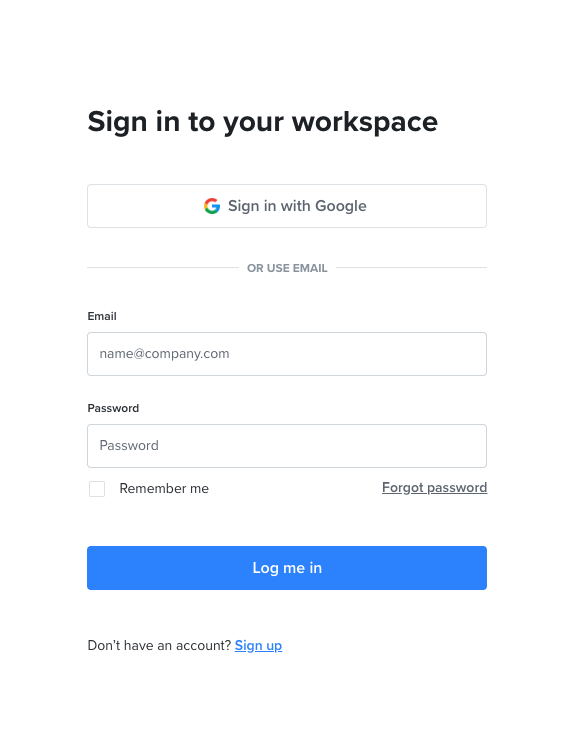
Sign in steps
- Open
/or/signin. - Use
Sign in with Googleor continue with email. - Enter email and password on the same screen.
- Optional controls on this screen:
Remember meandForgot password. - Submit
Sign in. - If verification is required, continue on
/verify(or/signin/codewhen flow-specific links point there).
Sign-in does not require confirm-password. Password fields are hidden by default and support eye-toggle show/hide.
Sign up
Use /signup to create a new account.
Sign up screen reference
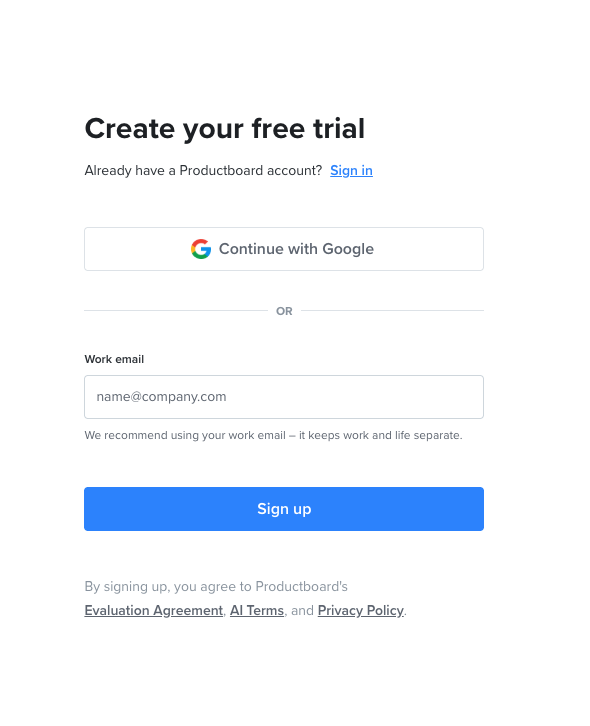
Sign up steps
- Start from the sign-up mode screen.
- Choose
Continue with Googleor enterWork email. - Select
Sign upto continue to password creation. - Create a secure password (confirm-password is not shown on sign up).
- Password criteria: at least 8 characters, uppercase, lowercase, and number.
- Complete required verification (email link or code challenge).
- Continue into onboarding or app based on account state.
- Legal notice on sign-up:
By signing up, you agree to JobsiteOn's Terms of Service and Privacy Policy.
Where to verify auth code
Auth code verification is available on /verify and /signin/code.
Verify auth code route
- Primary route:
/verify - Alternate route:
/signin/code - Input: 6-digit code
- Action:
Verify - Fallback action:
Resend code
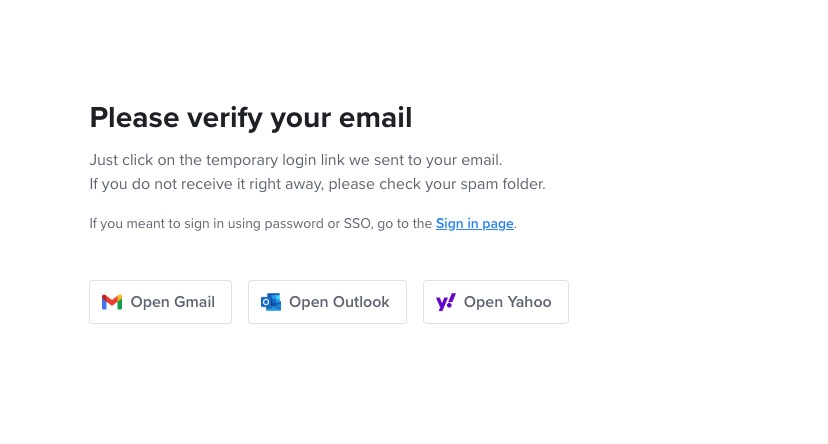
The one-click verification page is /verify for email-link verification.
Verification screen reference
Sign out
Sign out is executed from authenticated app surfaces and calls /auth/signout.
Sign out behavior
- User selects
Sign outin the app account menu/settings. - Client calls
POST /auth/signout. - Session and trust cookies are cleared server-side.
- User is redirected to the Auth web entry point.
Validation checklist
- Sign-in routes
/and/signinshow password, remember-me, and forgot-password on one screen. - Sign-up route works:
/signup. - Sign-up first step offers
Continue with GoogleandWork email. - Sign-up password criteria are enforced with live meter feedback.
- Verify routes are reachable:
/verifyand/signin/code. - Sign-out endpoint clears session:
/auth/signout.
Troubleshooting
I do not see the code entry screen
Code entry appears at /signin/code only when the current flow requires code verification.
I clicked verify but still cannot access the app
Confirm the latest code value, then retry. If needed, resend code and complete verification again.
Sign-out did not seem to complete
Retry sign out from the account menu. If a stale tab remains open, refresh after sign-out to confirm session removal.