


Keep the work with the photos.
Compare jobsite photos, project context and the steps after capture. See how CompanyCam and JobsiteOn connect the record to the work.
Look beyond the camera roll.
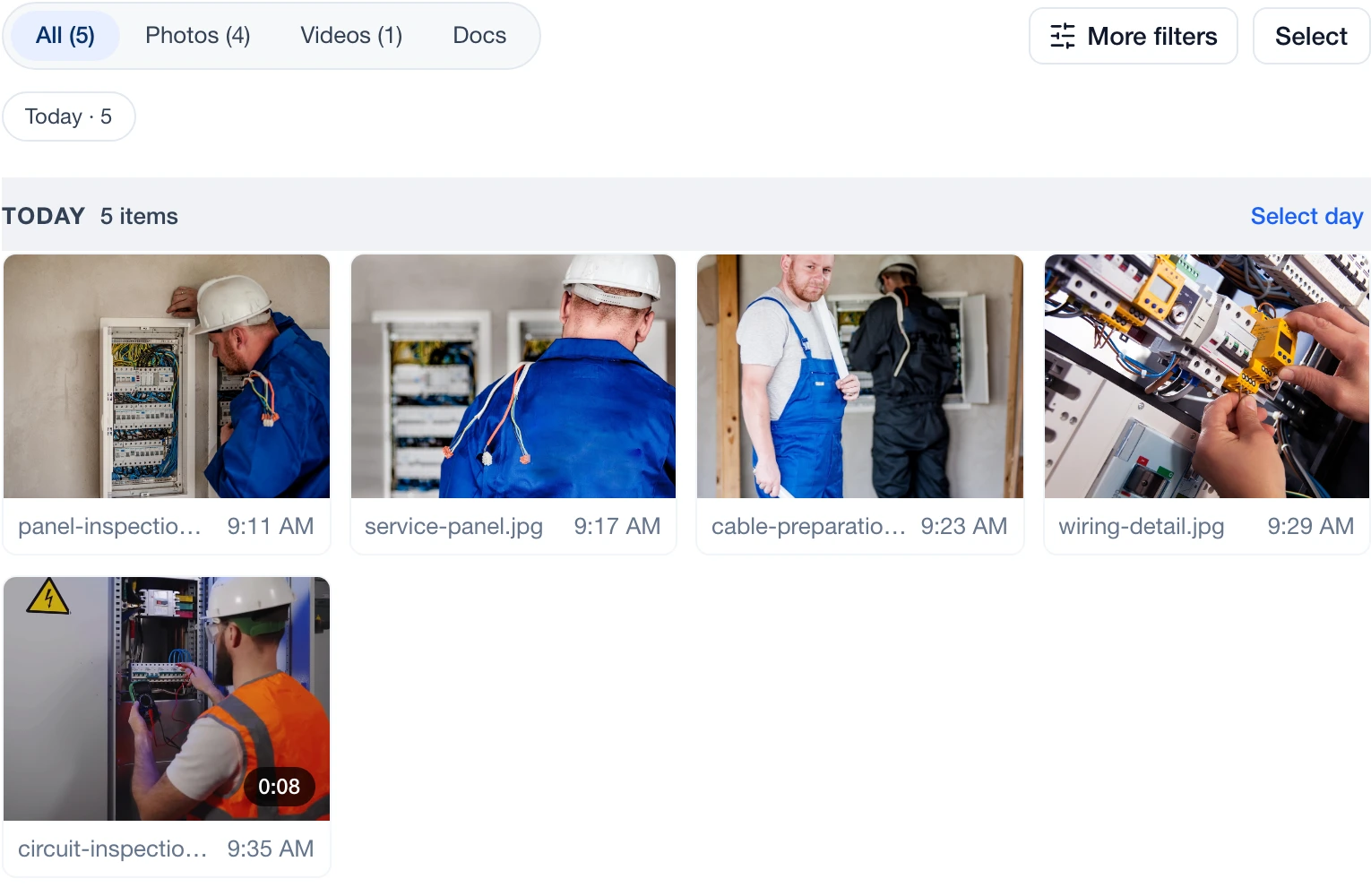 Enlarge
Actual JobsiteOn app capture with sample records. Product panel shown.
Explore Capture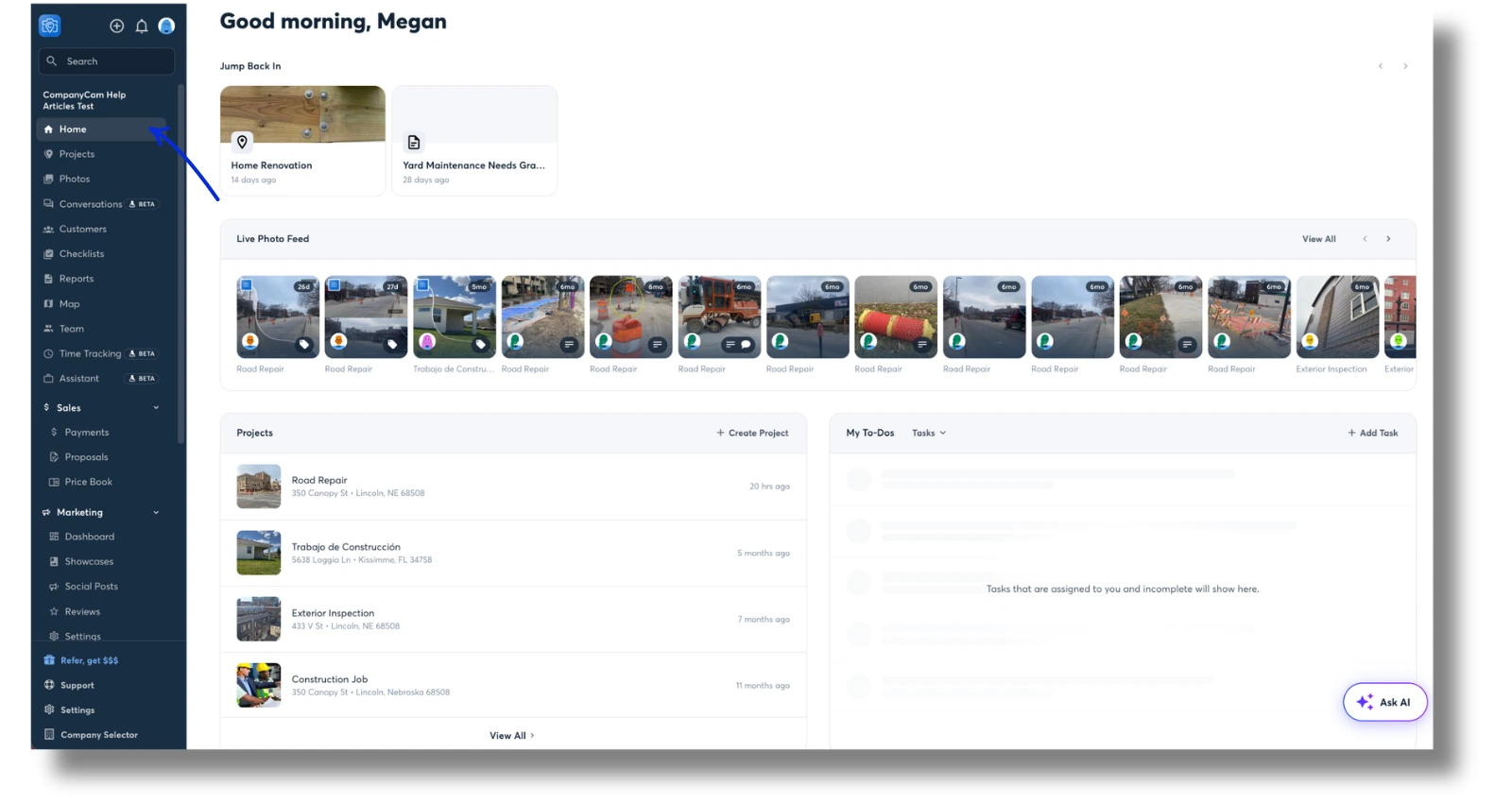 Enlarge
CompanyCam’s published web-home screenshot. The blue navigation arrow is part of its help article.
View the original sourceInspect how each product organizes the work. JobsiteOn shows a job’s media panel; CompanyCam shows its web home with project activity and a photo feed.
Vendor-published views, captured November 2, 2026. Sample data and screen scope differ. Open either image to inspect it; appearance and availability can vary by release.
The right fit for your day.
Choose around the work your team repeats. These are starting points for your evaluation, not a universal ranking.
You want the whole job in view.
Try JobsiteOn when photos are part of a wider job: the quote, the scheduled visit, the assigned crew and the invoice. Capture is included on Team and higher plans.
Check included productsPhotos & documentation.
Shortlist CompanyCam when photo documentation is the center of the workflow. It also offers proposals, invoices and payments; it is no longer accurate to describe it as only a photo app.
Read CompanyCam’s product detailsCompare the work, step by step.
Both products have useful capabilities. Read the details, check the source and try the task that matters to you.
Photos and video
Try thisFind the before and after photos for one visit without asking the person who took them.
Capture keeps photos, video and documents with the job, with filters for each media type.
Product detailsPhoto and video capture with timestamps, location information and cloud storage.
Vendor source: CompanyCam: photo and video captureQuotes and payment
Try thisStart with a project photo, then locate the customer’s accepted scope and invoice.
Sales and Payments cover quotes, invoices and payment collection alongside job records.
Product detailsProposals, a price book, invoices and payments are documented sales features. Availability and limits depend on the feature and plan.
Vendor source: CompanyCam: sales features explainedPlanning the work
Try thisBook tomorrow’s visit and identify where you would assign the people doing it.
Schedule shows booked visits; Dispatch adds a crew board on Team and higher plans.
Product detailsThe home screen brings together projects, assigned tasks and recent activity.
Vendor source: CompanyCam: navigating the web home screenSharing the record
Try thisOpen the customer’s link in a private browser. Check exactly what they can see and add.
Share selected job photos through a link and keep the source media on the job.
Product detailsGuests and collaborators have different access models, with plan-specific availability.
Vendor source: CompanyCam: guests and collaboratorsThe right plan
Try thisInclude every field user and any guest access, proposal volume or reporting feature you need.
Capture and Dispatch start at Team. Sales, Service, Schedule, Payments and Connect start at Starter.
Product detailsUser allowances, proposal limits and advanced documentation features vary by plan.
Vendor source: CompanyCam: plans explainedOne job. The whole story.
In JobsiteOn, the photo is evidence of work attached to a job your office can act on. Try the handoff from the person on site to the person sending the invoice.
- 01
Agree the scope
Prepare the quote against the customer and job.
Explore sales - 02
Send the crew
Schedule the visit and assign the people doing the work.
Explore dispatch - 03
Record what happened
Keep photos, clips and notes with that job.
Explore capture - 04
Close the loop
Find the work record when it is time to invoice.
Explore payments
Product availability depends on your plan. See plans, user limits and job allowances.
Price the way you work.
CompanyCam’s plan guide lists user allowances and feature limits. Check the current offer for your team, including any proposal limits or marketing add-ons. Compare that with the JobsiteOn plan that includes Capture.
JobsiteOn, billed monthly
- Starter
- $29/month
- Team
- $99/month
USD. User and job allowances apply. Capture and Dispatch start at Team.
Ask before you commit
- How many employees need to upload and review photos?
- Are guests, proposals and reports included at the volume you need?
- Will you keep a separate scheduling or invoicing subscription?
Compare the same users and billing term. Confirm taxes, processing fees, add-ons and contract conditions.
Give both products the same test.
Use a real job and involve the people who do the work. Check each step when you have tried it in both products, then take the checklist with you.
Start Free TrialA few useful answers.
Is CompanyCam only for jobsite photos?
No. CompanyCam also documents proposals, invoicing, payments and a price book. Compare the current plans and sales features instead of assuming you need a separate tool for every step.
Which JobsiteOn plan includes Capture?
Capture is included on Team and higher plans. Starter includes Sales, Service, Schedule, Payments and Connect. Review the current pricing page for user and job allowances.
Should I move my existing photo archive first?
Start with a new or recent job. Check the export formats, original files, dates, permissions and job links you need before moving an archive. Keep your existing records until you have verified the transfer.
Sources you can check.
Written by JobsiteOn using its product documentation and the official vendor pages linked here. Reviewed November 2, 2026. This is a product guide, not an independent benchmark or a claim that one tool suits every team.
Screenshots preserve the published interface and original annotations. Capture dates do not establish release versions. Third-party names and images belong to their owners; no affiliation or endorsement is implied.
Screenshot credits and capture methodPut JobsiteOn to work.
Bring a real quote, a real visit and the people doing the work. See how it fits your day.