


All trades / Job documentation
Job photos that explain the work
Build a useful job photo record with location context, detail shots, honest before-and-after pairs, upload checks and a customer-sharing checklist.
The quick answer
What makes a useful job photo record?
A useful job photo record connects the right project and location with clear images, short captions and the stage of work. Capture context, relevant details and the result. Keep original files, verify that uploads have completed and review the selected images and access settings before sharing them with a customer.
- Show where the work is before showing the detail.
- Use captions to explain what the image proves and what it does not.
- Verify uploads and sharing settings before sending a link.
The workflow at a glance
A photo set someone else can understand
- 01
Context
Identify the property and work area
Where - 02
Detail
Show the relevant condition clearly
What - 03
Progress
Record the work stage and changes
When - 04
Result
Explain the finished state and next step
Outcome
Start with a view that identifies the area
A close-up can show a useful detail and still leave the office unable to place it. Take a wider view of the work area, then the detail that matters. Use a consistent location label in the photo caption and job note.
Avoid assuming that a timestamp or map pin tells the whole story. A location may be approximate, and the time a file is uploaded may not be the time the photo was taken. Describe the relevant context in the record rather than making a stronger claim than the file supports.
Write captions that answer the next person's question
A caption should explain the location, stage and relevant observation. 'Before' is less useful than 'Kitchen sink, existing faucet before replacement.' Keep observations factual and put any proposed work or uncertainty in the accompanying note.
Use the same names across photos and tasks. If the job note says 'east elevation,' do not make the reader guess whether the photo folder called 'side wall' means the same area.
| Weak caption | Useful caption |
|---|---|
| Before | Kitchen sink, existing faucet before replacement. |
| Issue | Work area [location], showing [observed condition]. |
| Finished | [Location], agreed work completed on [visit date]. |
| Extra | Proposed additional work at [location]; approval still pending. |
- Before
- Kitchen sink, existing faucet before replacement.
- Issue
- Work area [location], showing [observed condition].
- Finished
- [Location], agreed work completed on [visit date].
- Extra
- Proposed additional work at [location]; approval still pending.
Make before-and-after comparisons honest
Use images of the same work area and make the viewing angle as comparable as practical. Do not pair unrelated stock images or two different properties as though they show a result. If the view changes, explain what the customer should compare.
Keep original files alongside edited or annotated copies. An arrow can direct attention; it should not obscure the condition you are documenting. If a photo contains sensitive information, check the version you will share rather than assuming an edit applies to every export.
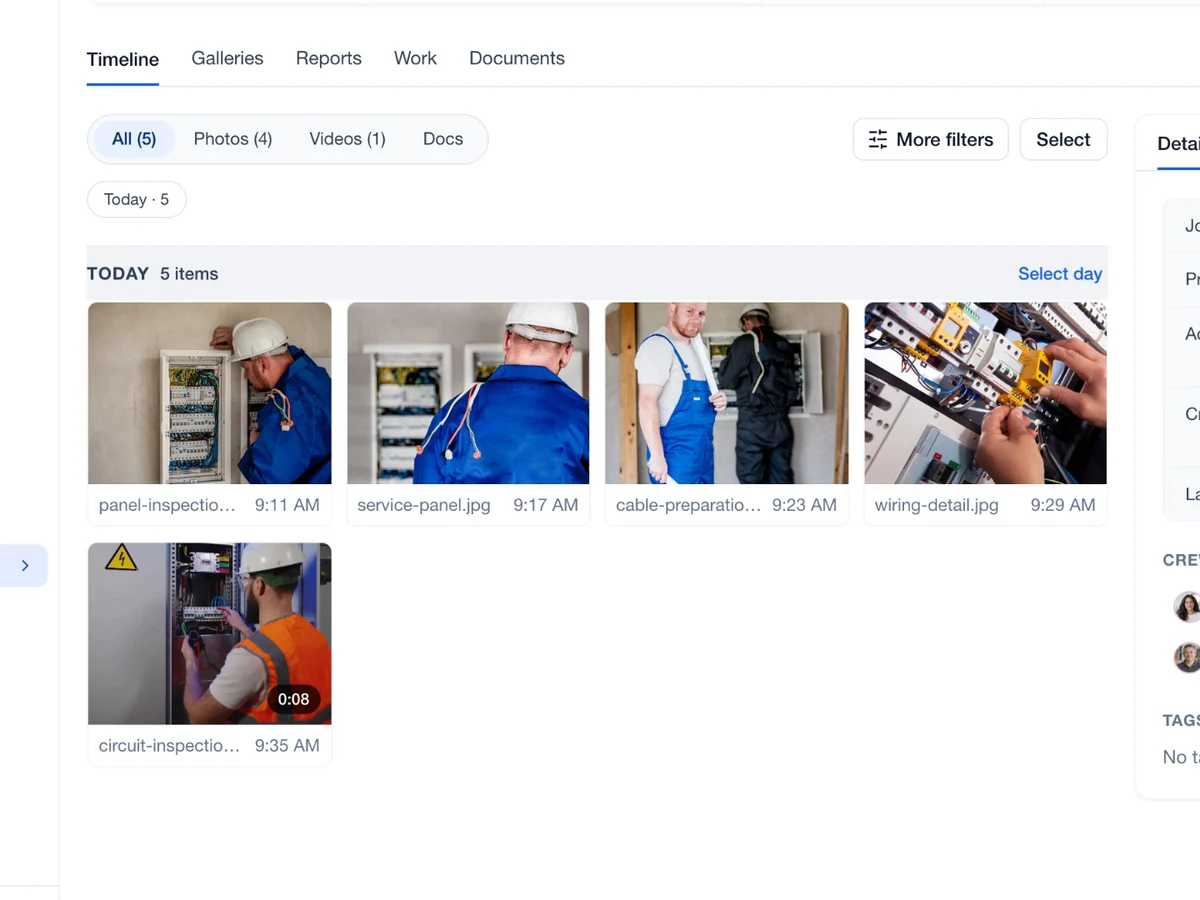
In JobsiteOn Capture, both photos must be ready and belong to the same project to create a before-and-after comparison. You can create a side-by-side or top/bottom composite and use the interactive comparison in the viewer. The source guide explains how edited derivatives and originals are handled.
Check the upload before leaving the record behind
Seeing a local thumbnail is not enough to know that a file is ready for the office or customer. Check the transfer status and confirm that the file appears in the correct project. For video, open the ready file and verify that the useful action is visible and understandable.
Capture's web uploader uses resumable transfers. Follow the queue's indication that unfinished files are saved for automatic resume before closing the tab. Resume with the same signed-in user, company environment and browser profile. If a file is stuck or failed, use the upload guide rather than repeatedly adding duplicates.
Take it to the next job
Job photo documentation checklist
- Select the correct project and property.
- Capture a clear overview and the relevant details.
- Label the location, work stage and observation.
- Keep before-and-after pairs tied to the same actual work.
- Preserve originals and review edited or annotated copies.
- Confirm files are ready or safely queued to resume.
- Open uploaded video and confirm it plays correctly.
- Choose a useful gallery and review private information.
- Set sharing scope, details, downloads, password and expiry.
See it in JobsiteOn
Capture, connected to the job.
Keep photos, video and project context together, then share a selected record of the work.
Common questions
How many photos should you take for a job?
Take enough to identify the work area, explain the relevant condition and show the result. The right number depends on the job. Clear captions and distinct views are more useful than repeated images.
Can you close the browser during a Capture upload?
Follow the upload queue. It tells you when unfinished transfers are saved for automatic resume. Continue in the same browser profile with the same signed-in user and company environment.
Does a shared gallery give access to the entire workspace?
No. A Capture share link authorizes the selected material, such as a photo, gallery, report or project. Choose the scope carefully and review its download, details, password and expiry settings.
Sources and editorial notes
Published by JobsiteOn. This guide combines practical workflow suggestions with the product instructions below. Examples and amounts are illustrative. Product details were checked on .
- Upload Photos from the Web
Product reference for file batches, folders and safe resumable uploads.
- Before-and-After Photos
Explains same-project pairing, comparison exports and original-file handling.
- Share Photos with a Link
Product reference for sharing scope, metadata, downloads, passwords and expiry.
The cover photo is by wohnblogAt, used under the Pixabay Content License. Photos depict stock scenes. Screenshots show the real app with sample records, not customer results.
Suggest a correctionKeep the work moving.
All guides
Electrical closeout notes the office can act on
Use this electrical job closeout checklist to hand over completion notes, photos, open work, customer decisions and billing details without another call.
Read the guide
Turn roofing inspection notes into a clear next step
Organize roofing inspection photos, findings, repair options and customer follow-up with a practical checklist and a message template.
Read the guidePut the workflow to work
Your next job, in one place.
Keep the quote, schedule and work record connected.